Running your hostel on TrueHostel
Everything you need to list your hostel or PG, take bookings and manage residents from the TrueHostel app. Each section shows where to find a feature, what it does, and how to use it step by step.
How TrueHostel works for owners
Tenants book for free and pay you at the hostel. Your only cost is the subscription.
Sign up and list
Create an owner account and add your hostel or PG with details, photos, tariffs and contact information. Your first month is free.
Receive inquiries
Potential tenants see your listing and contact you directly through your phone number or email. You manage all inquiries and negotiations directly.
Collect payments directly
All payments come directly to you. Tenants pay you the agreed rent, deposit and other charges on arrival or as arranged. TrueHostel never handles payments.
Manage your properties
Track your listings, manage property details, and keep your information current on the platform.
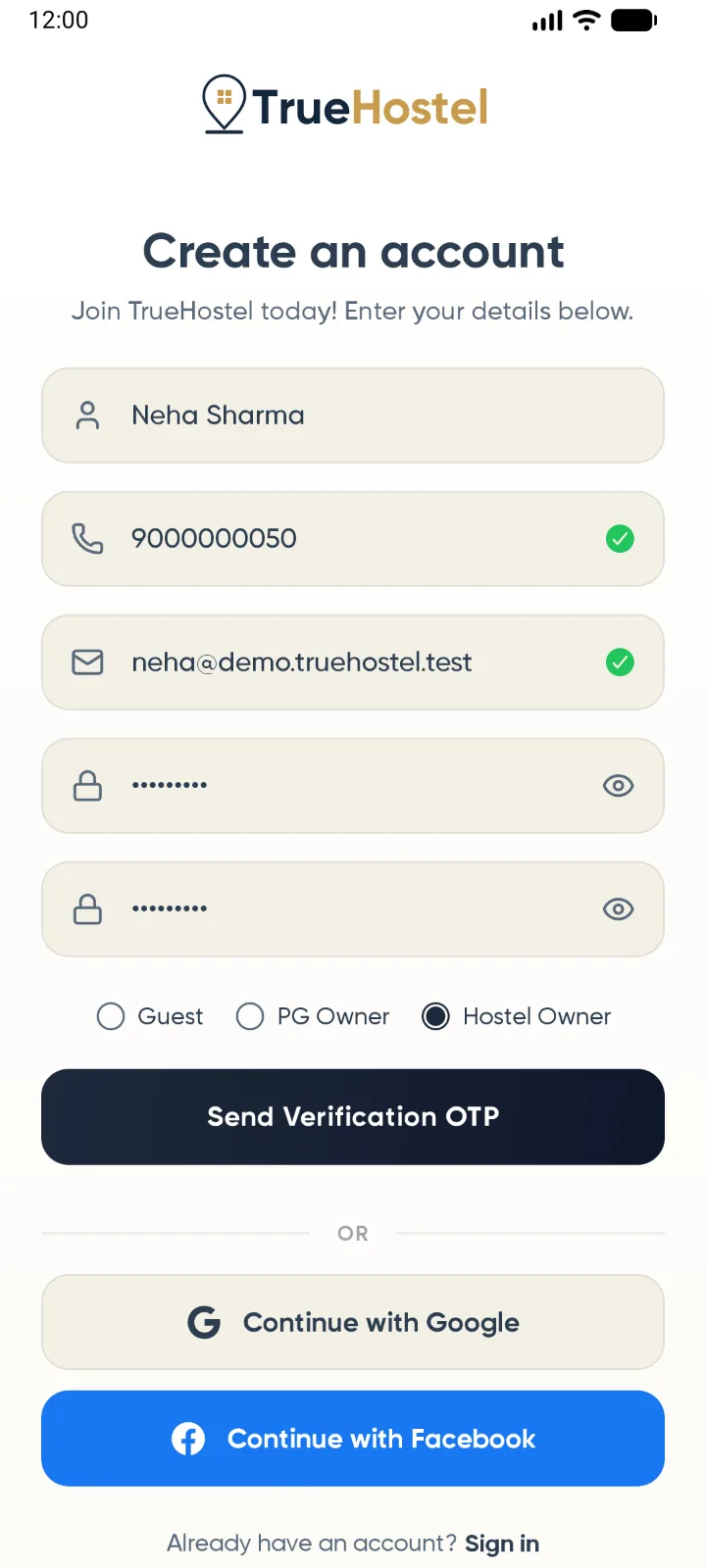
Create your owner account
Where App -> Register
- Download the Android app from this page and open it. Tap Register under "Don't have an account?".
- Enter your full name, a 10-digit contact number and your email address, then set a password. It needs at least 6 characters with an uppercase letter, a lowercase letter, a number and a special character.
- Choose Hostel Owner or PG Owner. Both get exactly the same tools, and either one can list hostels as well as PGs.
- Tap Send Verification OTP, enter the 6-digit code sent to your email, and tap Verify & Complete.
You can also use Continue with Google or Continue with Facebook. The first time, the app asks for your contact number and whether you are an owner.
Your free month starts on the day you sign up. Every property you list during that month stays free until the month ends, so add all your properties early.
List your hostel or PG
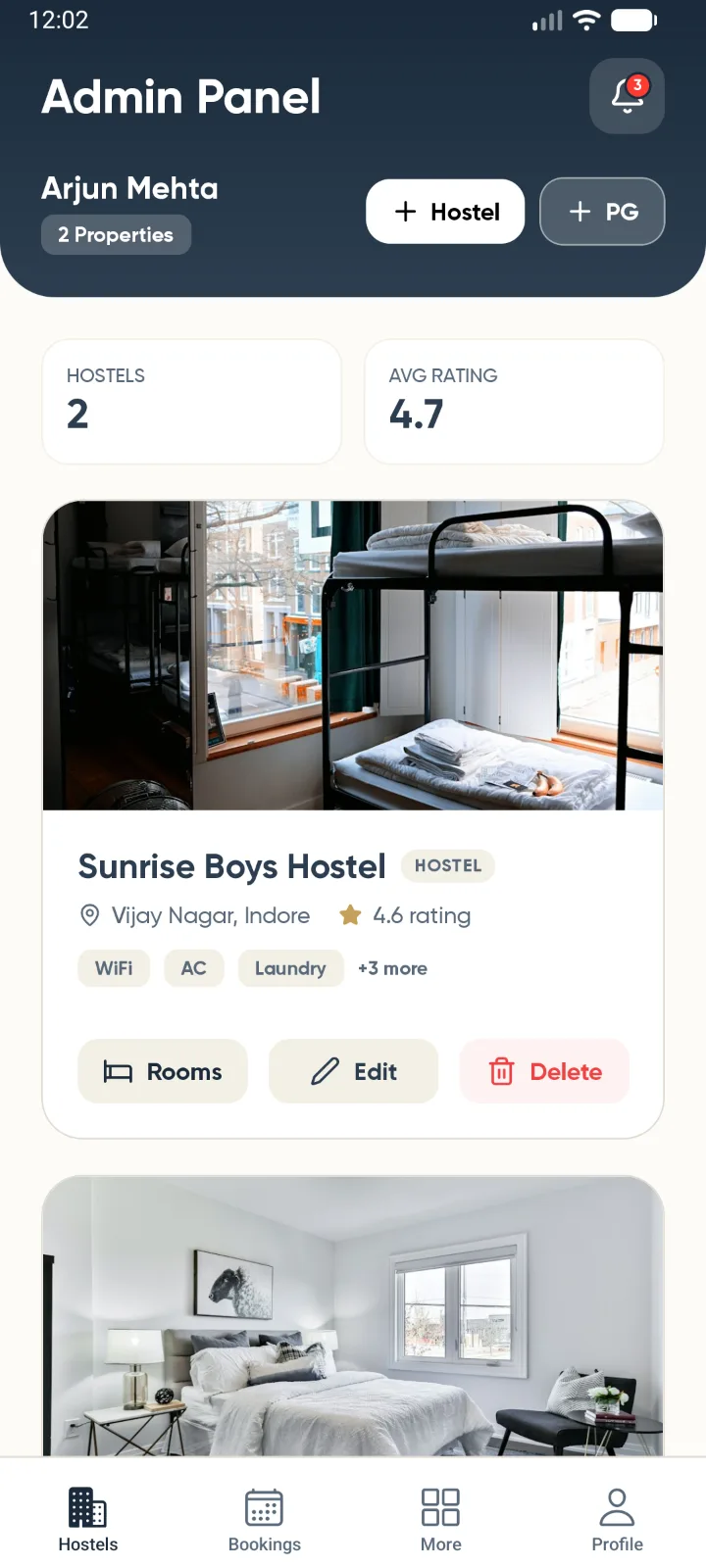
Where Hostels tab -> + Hostel or + PG
The Hostels tab is your home screen. It lists every property you own, with buttons to manage its rooms, edit its details or delete it.
- Tap + Hostel or + PG at the top of the Hostels tab.
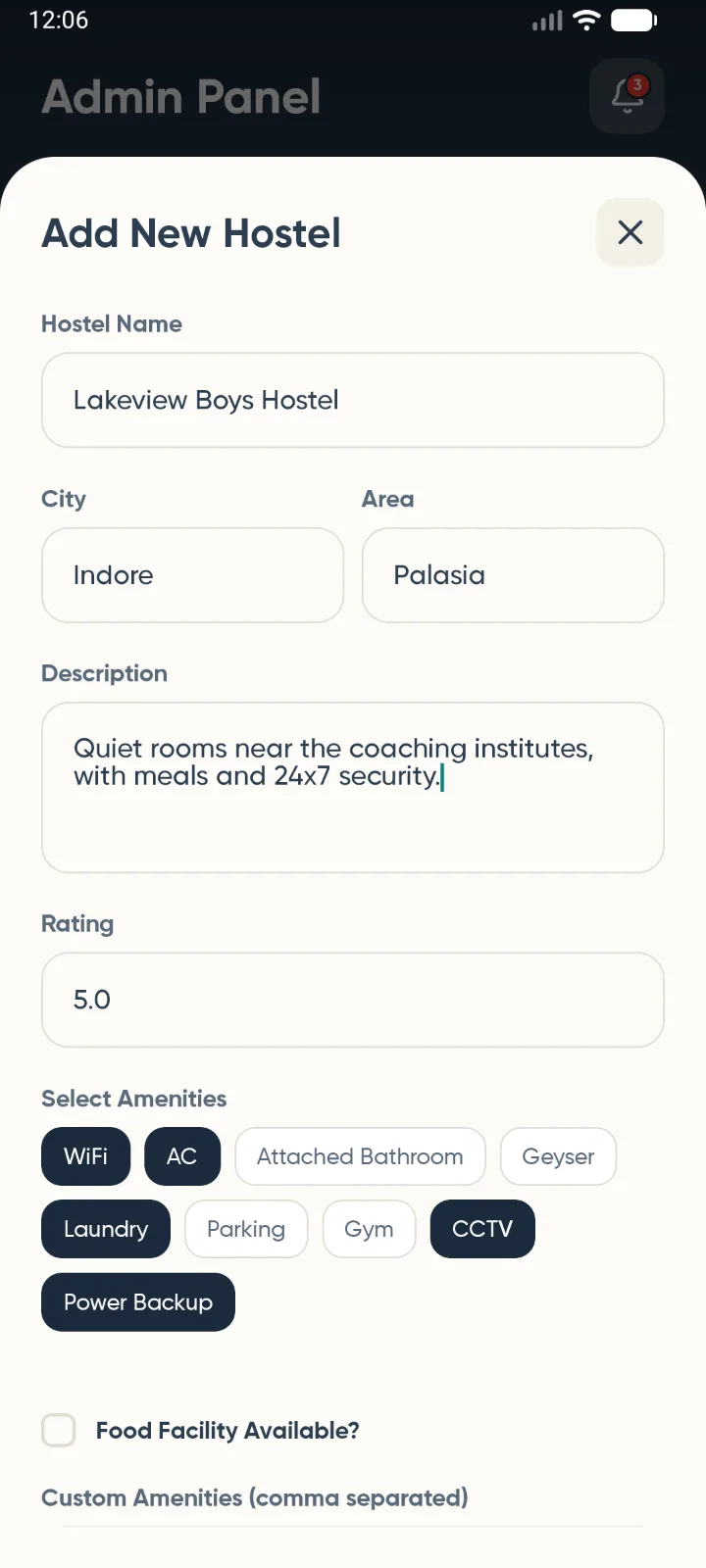
- Fill in the name, city, area and a short description of your property.
- Select your amenities (WiFi, AC, attached bathroom, laundry, CCTV and more). If you serve food, tick Food Facility Available? and choose the meals and veg or non-veg.
- Choose the property type and category (Boys, Girls or Co-ed), then enter the base price per month, your gate cut-off time and your house rules.
- Optionally switch on Hostel-wide Offer to show a discount on every room. You can set a percentage or a fixed amount, and an end date.
- Tap Pick Image to add a cover photo, then tap Add Hostel.
New listings are reviewed by the TrueHostel team before they appear in search. You will get a Hostel Approved notification and an email once yours is live.
The app takes one cover photo. To upload up to 15 photos, add your contact number, pin your location on the map, or upload ownership documents, sign in on the website and open Hostels List.
Set up rooms and beds
Where Hostels tab -> Rooms (on a property card)
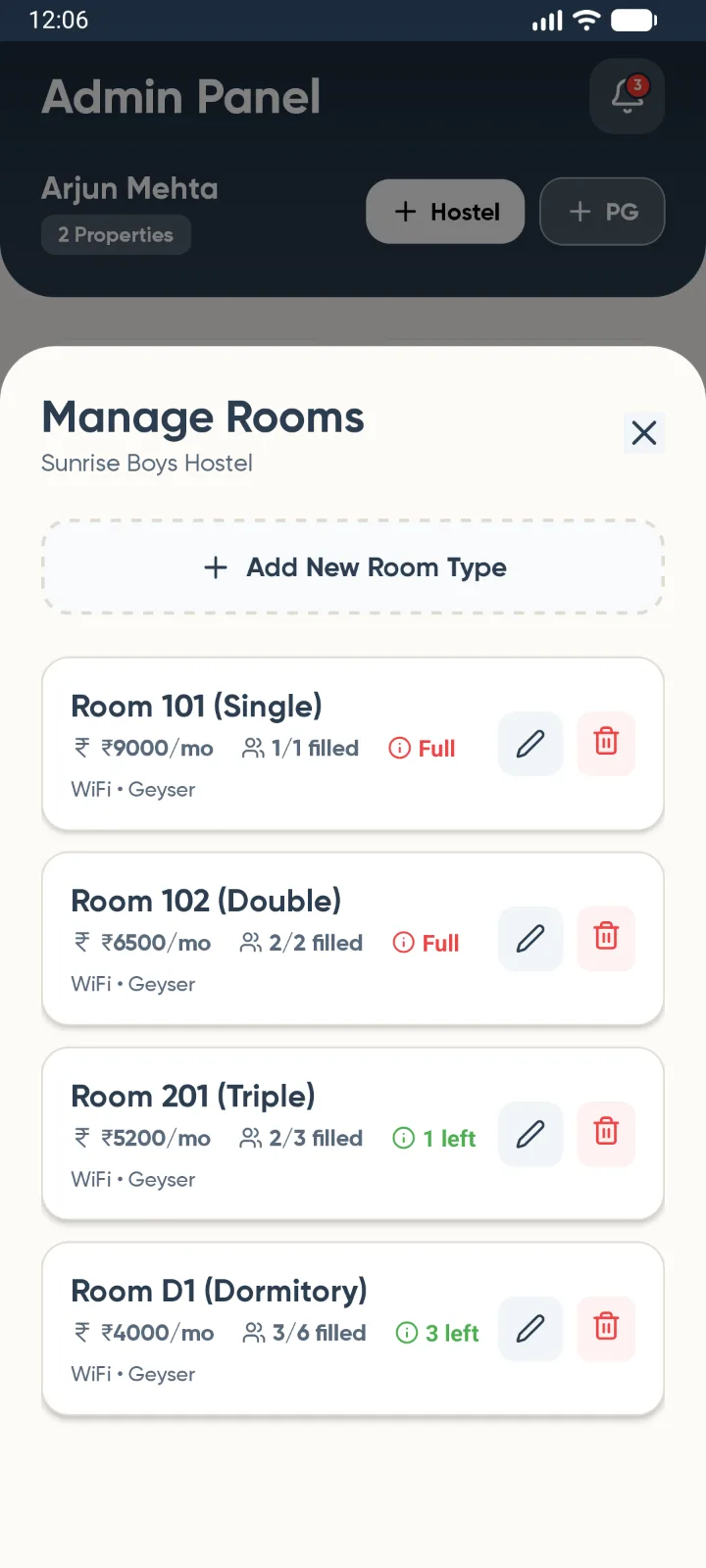
Rooms are what tenants actually book, so every property needs at least one. Each room type has its own price and number of beds.
- Tap Rooms on a property card, then Add New Room Type.
- Choose Single, Double, Triple or Dormitory, and optionally enter a room number.
- Enter the Price / Month and the Total Capacity (the number of beds).
- In Already Filled, enter how many beds are already taken by residents who did not book through TrueHostel.
- Add up to 5 photos, a description and the room's amenities. Switch on Room Offer if this room should have its own discount, which overrides the hostel-wide offer. Then tap Save Room.
Each room card shows how many beds are filled and how many are left, or Full. Bookings, approved cancellations and check-outs update the count automatically.
Keep Already Filled accurate. If it is too low, tenants can book beds you no longer have.
Handle bookings
Where Bookings tab
Tenants book for free. They choose a room, a check-in date and an arrival time, and the booking comes straight to you as Confirmed. You get a New Booking Received notification with the room, check-in date and booking ID. The tenant pays you when they arrive.
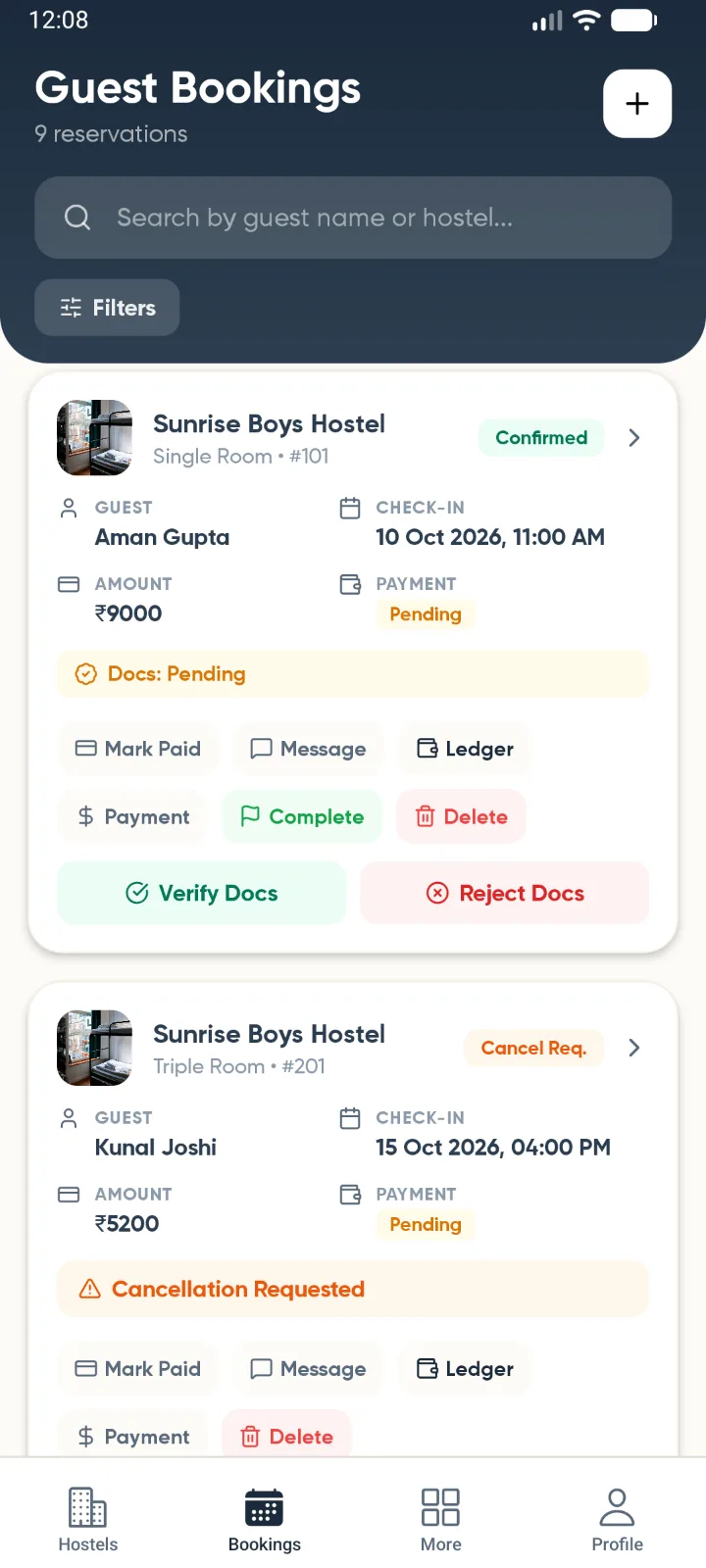
The Bookings tab lists every booking across your properties. Search by tenant or hostel name, and use Filters to narrow by booking status, payment status or room type. Tap a booking to open its details. Each booking card has these buttons:
- Mark Paid / Mark Pending — set whether the tenant has paid.
- Message — send the tenant an in-app message. Ready-made templates cover pending dues, documents and rule violations. This only works for tenants who have a TrueHostel account.
- Ledger — record rent, deposits and dues (see the next section).
- Payment — set the caution deposit and any advance the tenant has paid. Both are written into the tenant's ledger for you.
- Complete — use it when the tenant moves out. It checks them out, frees the bed and lets the tenant know.
- Delete — remove a booking made by mistake.
Checking a tenant's ID
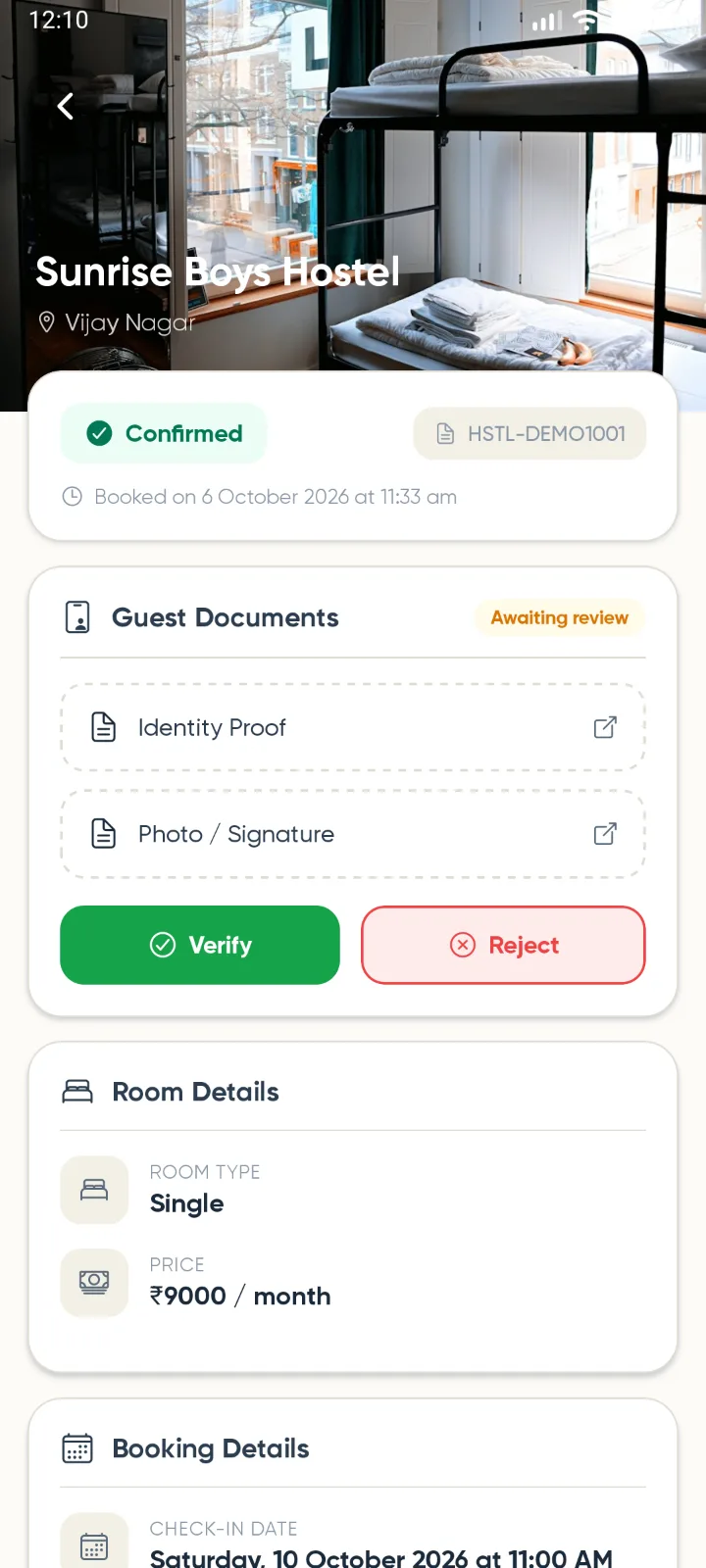
Tenants can upload their ID proof and a photo with their signature from their booking in the app. When they do, you get a Tenant Documents Uploaded notification and the booking shows Docs: Pending.
- Open the booking and look at each document under Tenant Documents.
- Tap Verify if they are in order, or Reject and say what is wrong — for example a blurred photo.
- The tenant is notified. A rejected tenant can upload new documents, and the booking comes back to you for review.
If a tenant has not uploaded anything, use Message → Documents to ask for it.
When a tenant asks to cancel
You get a Cancellation Requested notification, and the booking shows a "Cancellation Requested" banner. Tap Approve Cancel on the Bookings tab (or Approve inside the booking) to cancel it and free the bed, or Reject to keep the booking active. The tenant is told either way.
Use the + button at the top of the Bookings tab to add a tenant who walks in or calls you directly.
Collect rent and track dues
Where Bookings tab -> Ledger, or More -> Payments
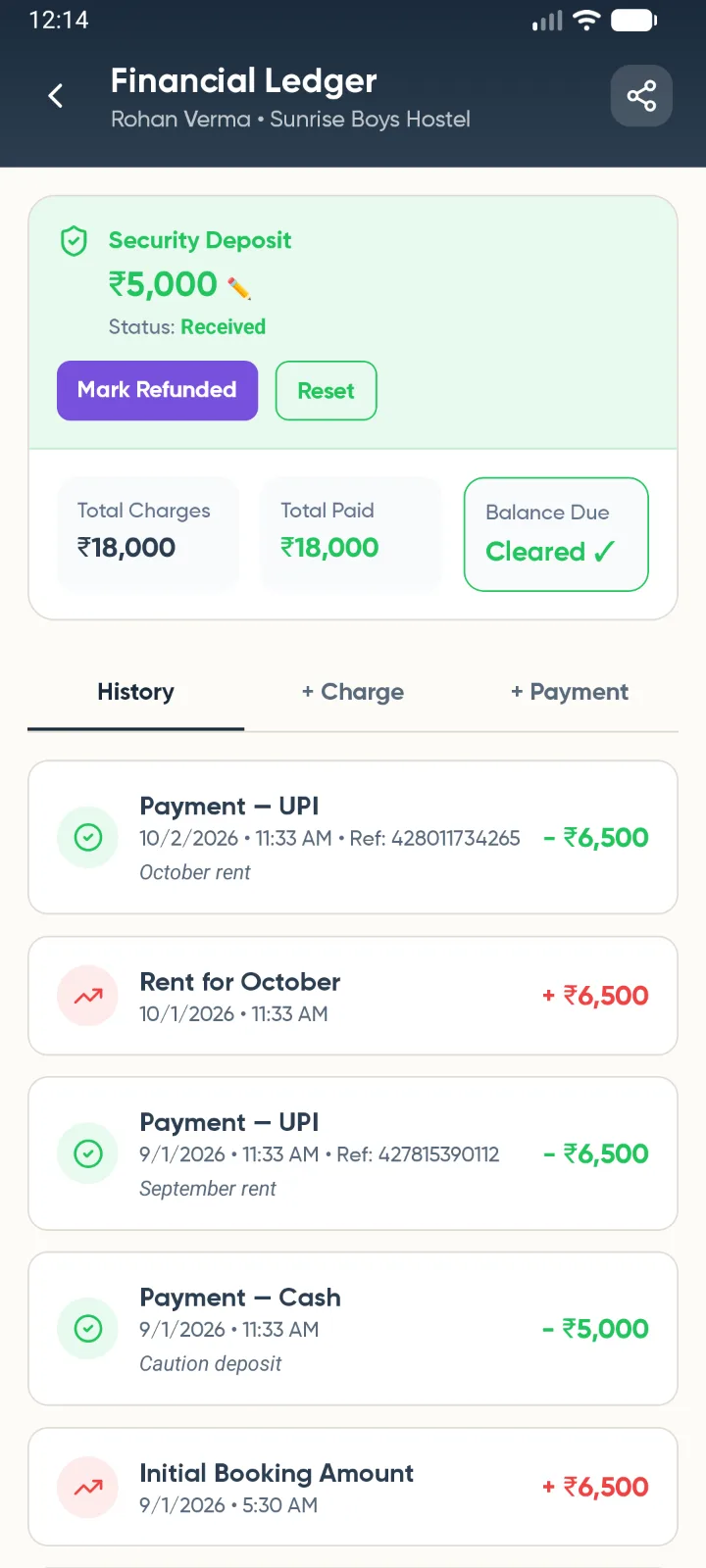
Every booking has a Financial Ledger, a running account of what the tenant owes and what they have paid you. New bookings start with an Initial Booking Amount charge, plus a Security Deposit charge when the room has one.
Record a payment
- Open the ledger and tap + Payment.
- Enter the amount received and choose Cash, UPI or Bank Transfer.
- Optionally add a reference ID, such as the UPI transaction number, and a remark. Then tap Record Payment.
Add monthly rent or another charge
- Tap + Charge and enter a title such as "Rent for November" or "Late fee".
- Enter the amount and tap Add Charge. The balance due updates straight away.
Security deposit
In the Security Deposit box, tap Mark Received when you collect it and Mark Refunded when you return it at move-out. Tap the amount to change it.
The top of the ledger shows Total Charges, Total Paid and Balance Due, which reads "Cleared" when nothing is owed. The share icon sends a summary to the tenant on WhatsApp or any other app.
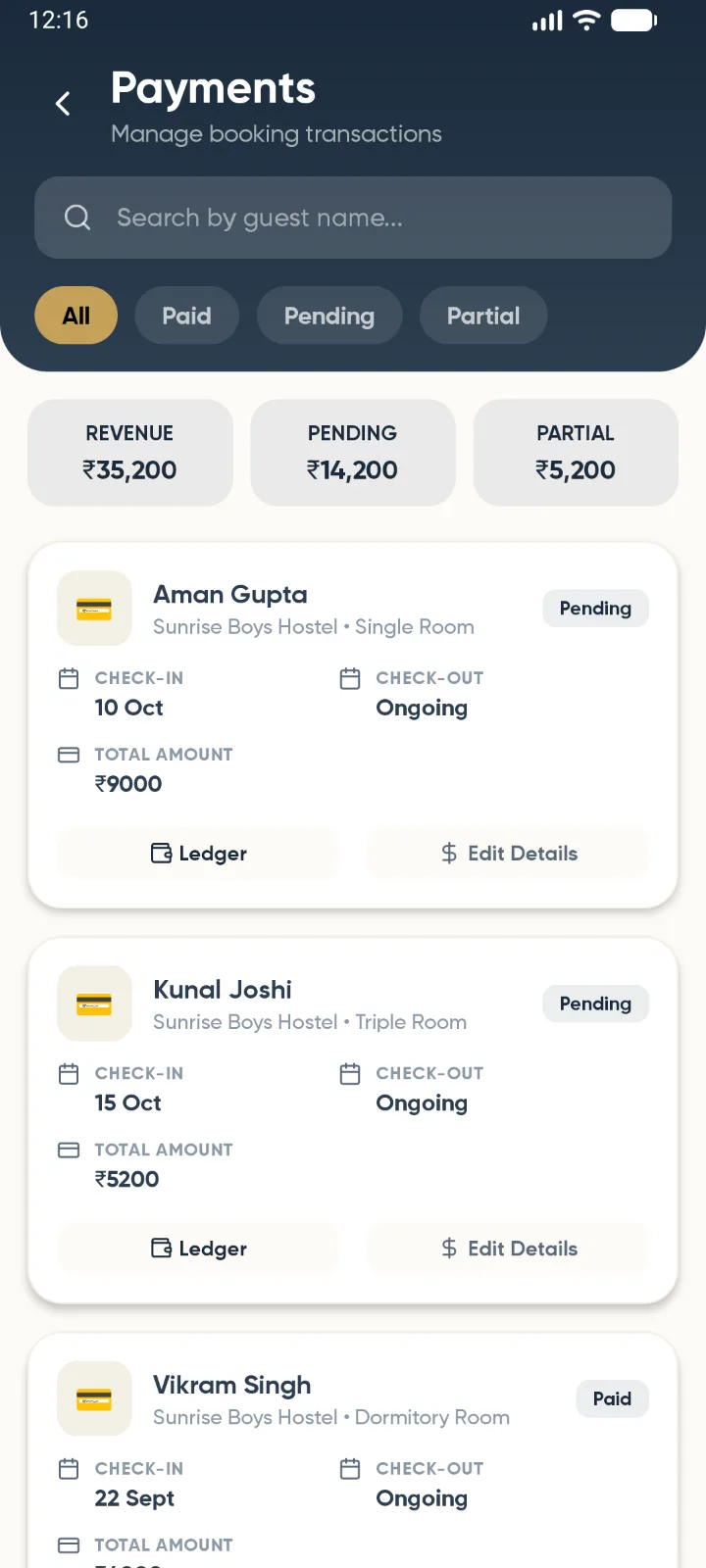
More → Payments lists every booking with its payment status. Filter by Paid, Pending or Partial, tap a card to change its status, open its ledger, or tap Edit Details to set the deposit and advance.
Recording a payment in the ledger does not change the booking's Paid / Pending badge. Once a tenant has paid in full, also tap Mark Paid. Give the tenant a receipt for every payment; the website can email them a PDF receipt from the ledger.
Add walk-in tenants
Where More -> Manual Booking, or + on the Bookings tab
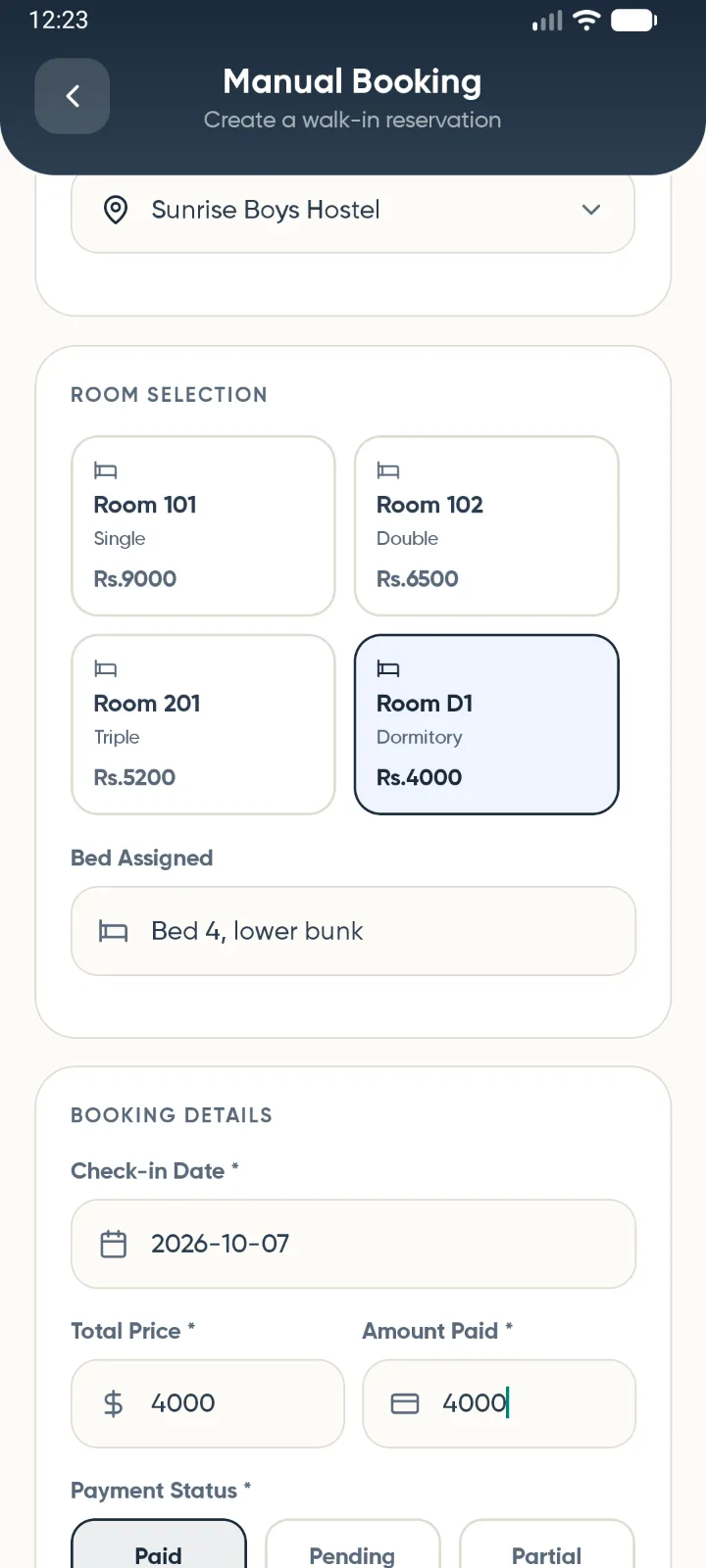
Add residents who did not book through the app, so that all your tenants, their rent and their documents sit in one place.
- Enter the tenant's name and phone number, and their email if you have it.
- Select the hostel, then tap a room. Its price fills in automatically. Optionally note the bed, for example "Bed 2, upper bunk".
- Enter the check-in date, total price, amount already paid and payment status.
- Under Documents, tap Add photos or Camera to attach the tenant's ID. You can add as many as you need.
- Tap Create Booking. The booking gets its own ledger and takes up a bed in that room.
If the phone number or email belongs to a TrueHostel account, that tenant also receives your notice board announcements in the app.
Keep the entry and exit logbook
Where More -> Logbook
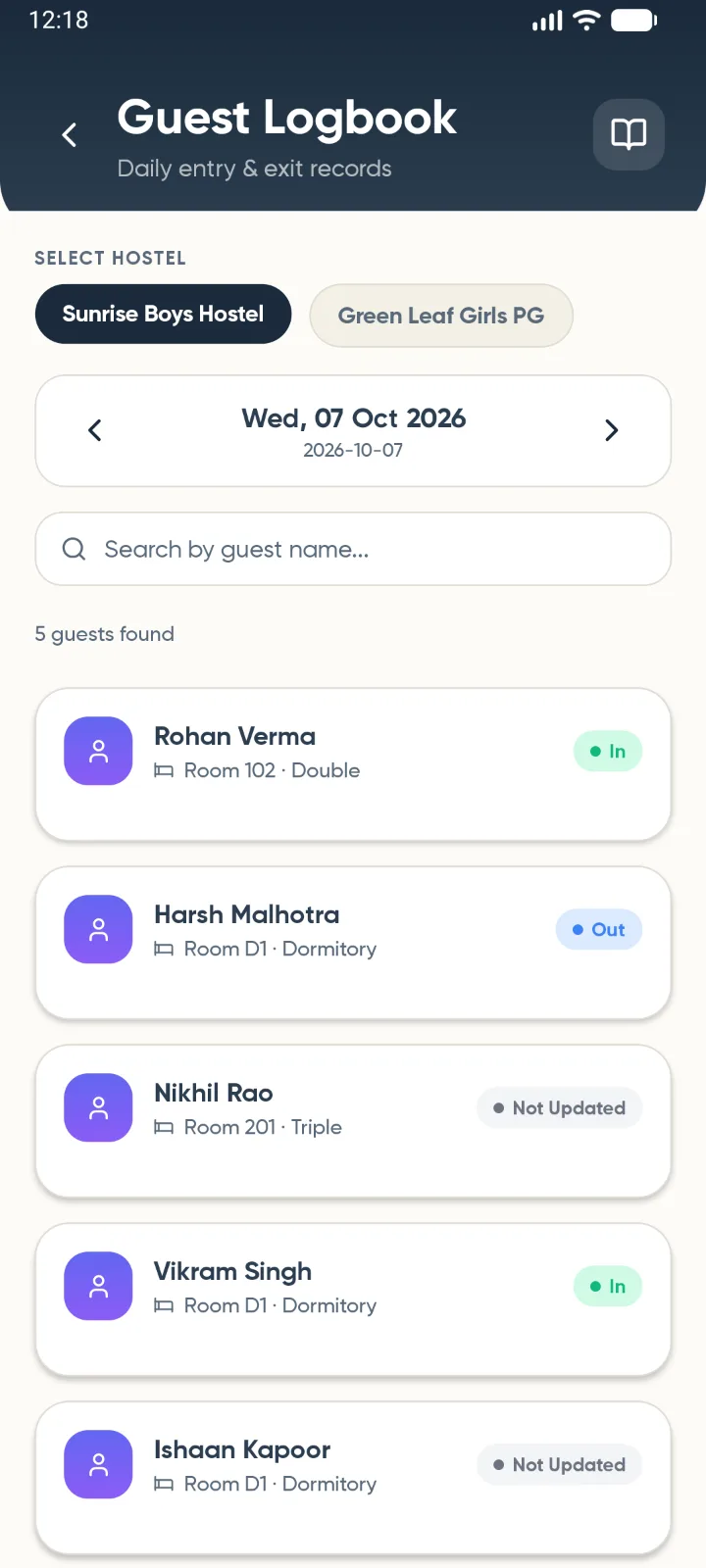
The logbook is a daily gate register. It lists every resident on the date you choose with a status of In, Out or Not Updated.
- Select the hostel at the top.
- Use the arrows to move a day at a time, or tap the date to open the calendar.
- Tap a tenant, then Edit Log.
- Set the status, enter the entry and exit times (for example 21:30), and tap Save Log.
Search by tenant name to find someone quickly in a large hostel.
Post notices to residents
Where More -> Notice Board
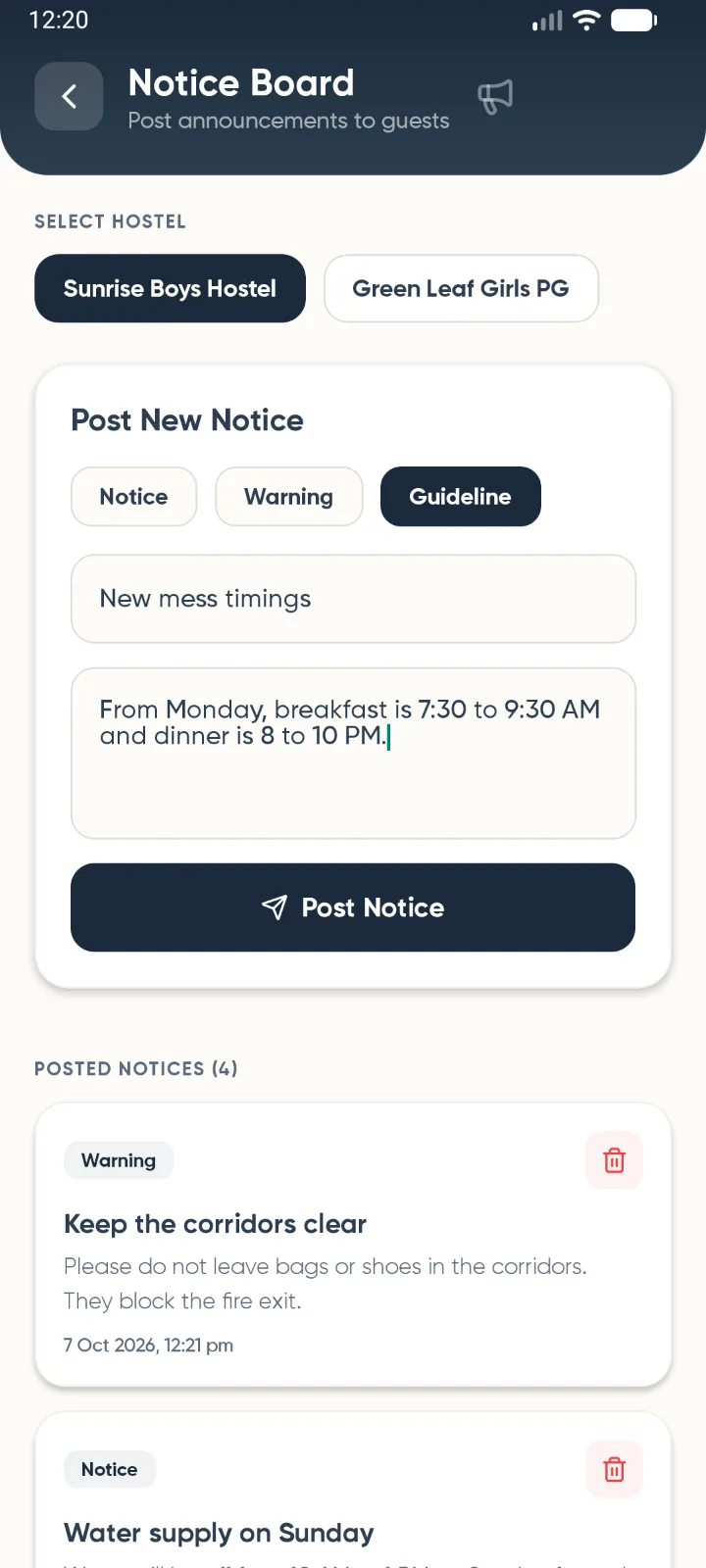
Use notices for anything every resident should know, such as a water cut, fee due dates or a change in gate timings.
- Select the hostel.
- Choose Notice, Warning or Guideline, then write a title and the message.
- Tap Post Notice. Every current resident with a TrueHostel account gets a notification.
Posted notices are listed below the form. Tap the bin icon to delete one.
If you connect WhatsApp from the website dashboard (Settings), your notices are also sent to residents on WhatsApp.
See how your properties are doing
Where More -> Analytics
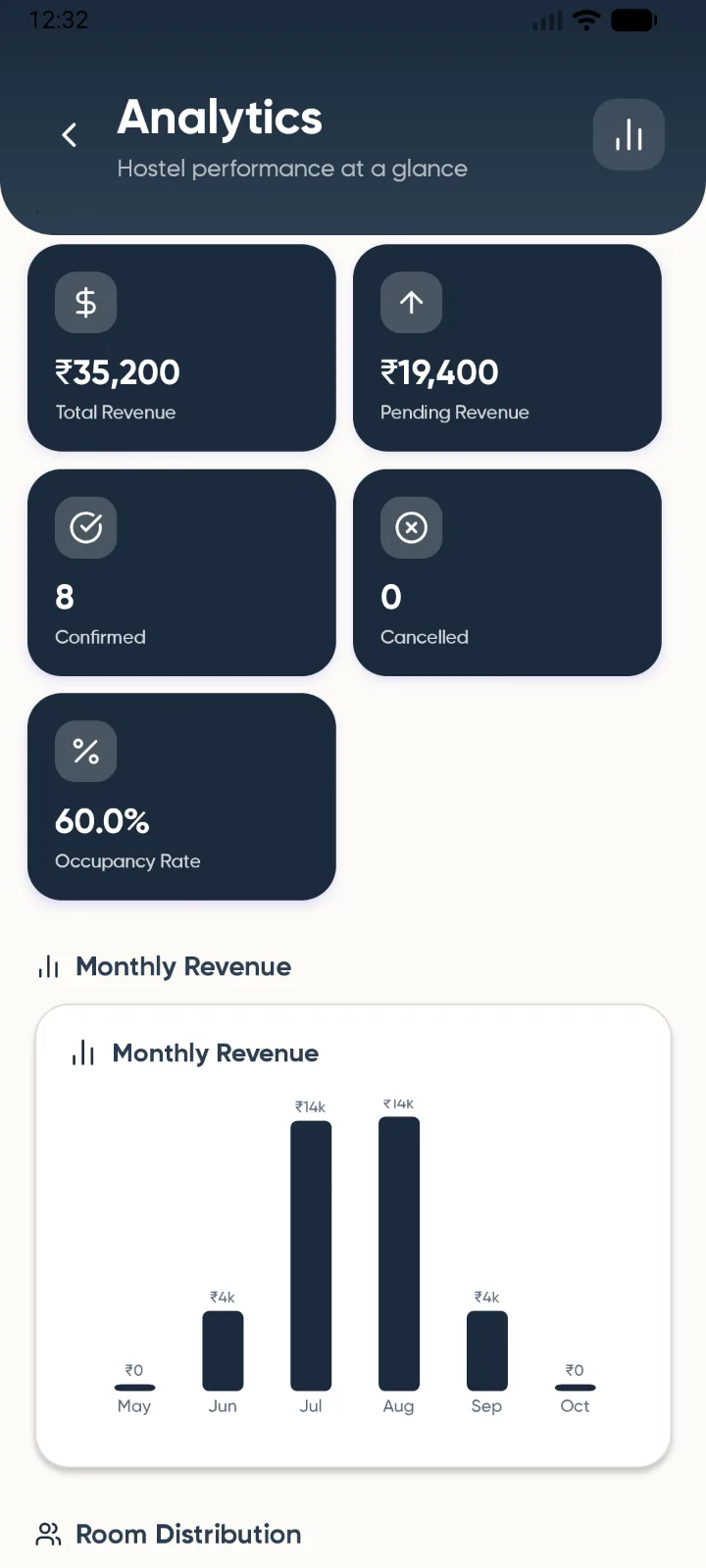
Analytics gives you the numbers across all your properties in one place:
- Total Bookings, and how many are confirmed or cancelled.
- Total Revenue from bookings marked as paid, and Pending Revenue still to be collected.
- Occupancy Rate — the share of all your beds that are filled.
- Monthly Revenue for the last six months, and how your rooms split between single, double, triple and dormitory.
Revenue counts bookings marked as paid, so tap Mark Paid once a tenant has paid in full to keep these figures right. Pull down to refresh.
Subscription and Featured listing
Where More -> Subscription, or any Renew button
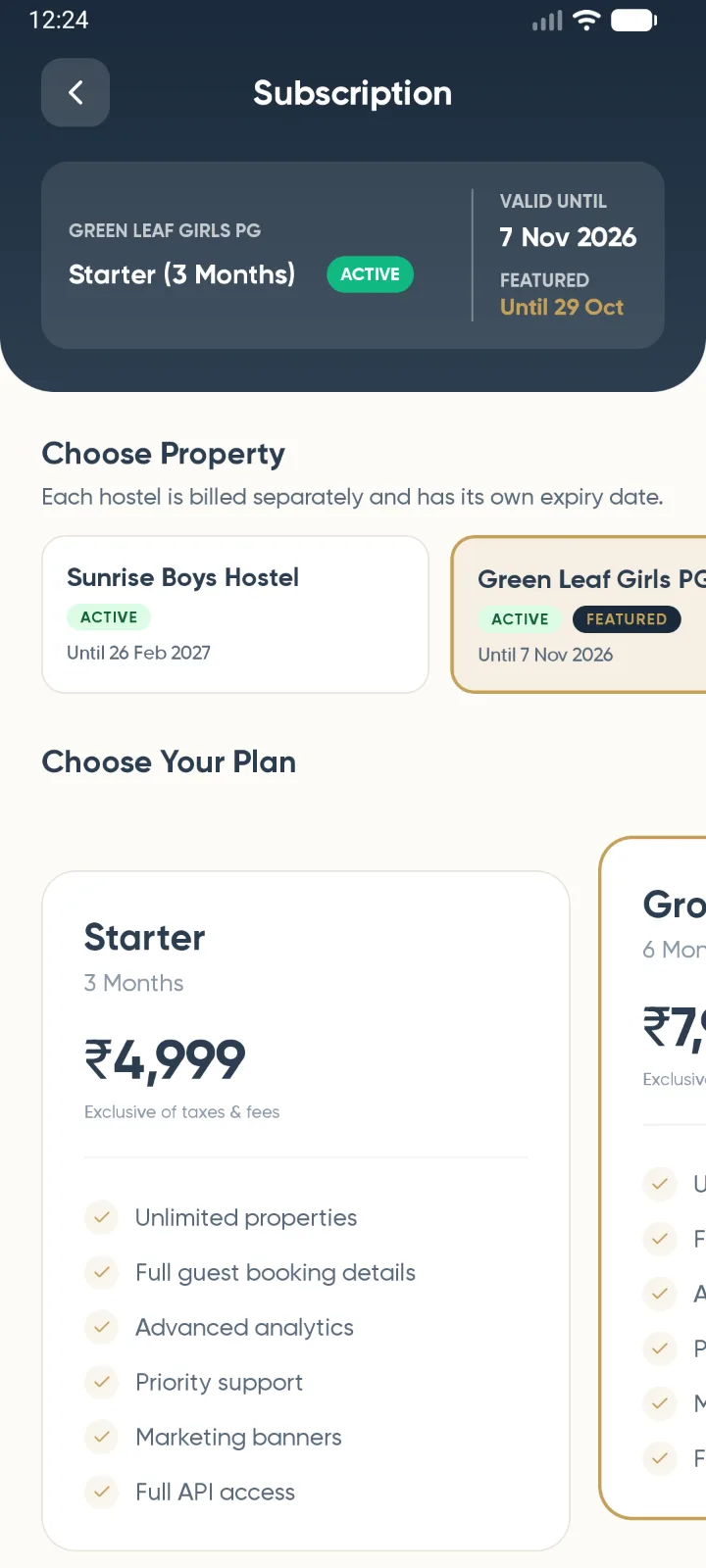
Each property is subscribed separately and has its own expiry date. Your first month from the day you sign up is free. After that, each property needs a plan:
18% GST and a 3% platform fee are added at checkout, and the full total is shown before you pay. Renewing early adds the new months on top of the time you have left.
- Under Choose Property, pick the hostel or PG to pay for. The one expiring soonest is selected for you.
- Choose a plan and check the order summary.
- Tap Subscribe and complete the payment on the secure Razorpay page (UPI, cards or net banking).
Featured listing
For ₹500 a month plus taxes, a property is pinned above the others in search results with a gold Featured tag. Tick it with your plan or tap Buy Standalone. Buying it again adds another month.
If a subscription ends
- The property stays listed and can still receive bookings, but tenant names and contact details on its bookings are hidden.
- Tenants can no longer see your contact number or map location.
- Its Rooms, Edit and Delete buttons are locked in the app until you renew.
You get a reminder 7 days before a plan ends and again on the day it ends, so you can renew without a gap.
Notifications you will receive
Where Bell icon on the Hostels tab -> View All History
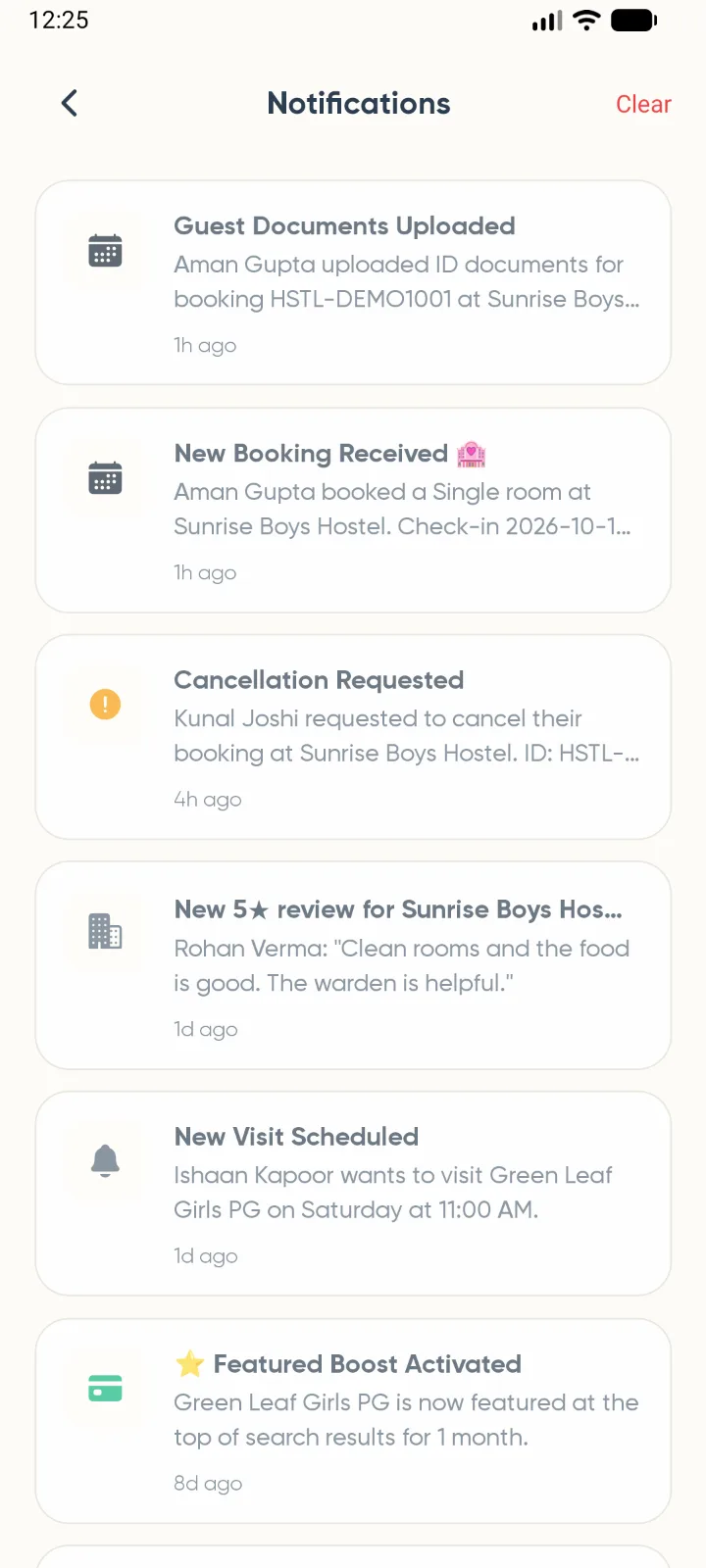
The bell on the Hostels tab shows how many notifications you have not read. Tap it to see them, and tap View All History for the full list. Tapping a notification takes you to the right place: booking alerts open the booking, listing and review alerts open the Hostels tab, and subscription alerts open Subscription.
- New Booking Received — a tenant has scheduled a stay. Tap it to open the booking.
- Cancellation Requested — approve or reject it from the Bookings tab.
- Hostel Approved / Hostel Rejected — the result of the listing review.
- New review — a tenant has rated your property.
- Low Occupancy Alert — fewer than half the beds in a room are filled.
- New Visit Scheduled — a tenant wants to come and see your property.
- Trial / subscription reminders and payment receipts. Tap them to open Subscription.
What the website dashboard adds
Where Sign in on TrueHostel with the same account -> Admin Workspace
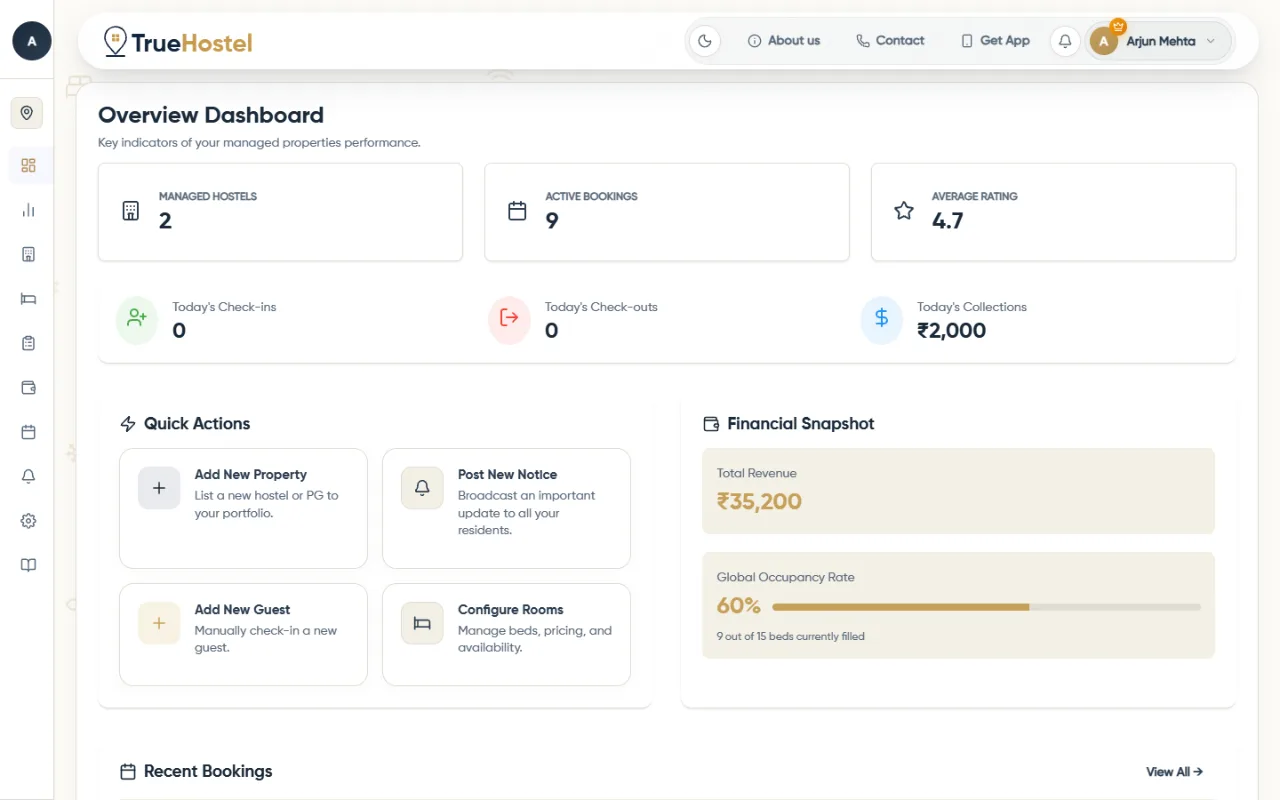
The app covers your day-to-day work. A few things are easier, or only possible, on a laptop:
- Advanced Analytics — revenue by property, payment status, overdue dues and booking trends, in more detail than the app.
- Hostels List — up to 15 photos, your contact number, map location, ownership documents and the review status of each listing.
- Reservations — act on many bookings at once, and edit walk-in bookings and their documents.
- Ledger receipts — email a PDF receipt to the tenant.
- Settings — connect WhatsApp to message residents and send notices there too.
Frequently asked questions
Do tenants pay through TrueHostel?
No. Booking is free for tenants. They pay the rent, deposit and any other charges directly to you at the hostel, and you record it in their ledger.
Does TrueHostel take a cut of my rent?
No. Your cost is the subscription for each property you list. TrueHostel does not collect, hold or deduct anything from the rent your tenants pay you.
Why does a booking say "Hidden (Subscribe to view)"?
That property's free trial or subscription has ended. The booking is still there, but the tenant's name and contact details stay hidden until you renew from More > Subscription.
My new property does not show up in search. Why?
Every new listing is checked by the TrueHostel team before it goes live. You get a 'Hostel Approved' notification and an email once it is published. On the website dashboard, Hostels List shows the review status of each property.
Can I manage more than one hostel or PG?
Yes. Add as many as you like from the Hostels tab. The Bookings and Payments screens show all of them together, and the Logbook, Notice Board, Manual Booking and Subscription screens let you pick the property. Each property has its own subscription and expiry date.
A tenant cancelled. Do I have to refund them?
Anything the tenant paid was paid to you, so any refund comes from you, in line with what you agreed with them. Approving the cancellation on the Bookings tab frees the bed for someone else.
How do I change my name, email or phone number?
Open the Profile tab and tap Edit Profile.
Need a hand getting set up?
Write to [email protected] for support. Available Monday to Friday, 10:00 AM – 7:00 PM IST.